Variables
With Variables, you can take your wireframes to the next level and build lifelike projects.
You can use variables to store and transfer information like text, images, or data across screens in your project. For example, you can take a name typed in an Input Text Field and show that same name in a Text element on another screen.
Create a variable
Look to the Variables palette and click the ‘+’ button to create a new variable in your project. If you don’t see the Variables palette, make sure it’s checked to be visible in the Palette menu.
When you create a new variable, you’ll be able to define its default value. Most often, you’ll want to leave this blank.

Define the value of a variable
To change the value of a variable during simulation, you’ll need to use events. You can do so in two ways:
- Drag and drop: Drag the element you’d like to give the value to the variable to the Variable’s palette. As an example, drag an Input Text Field to the Variables palette.
This creates an On Page Unload + Set Value event automatically, which transfers whatever’s in the input text field to the variable when you go to another screen. - The Events palette: You can also manually create the events to give a variable a value with the Events palette. This is useful for when you’ll want to define a variable’s value in another way, like after focusing out of an input text field or clicking on a button.
- Select the element you’d like to give the variable a value. As an example, use an Input Text Field.
- Go to the Events palette and click ‘Add event’.
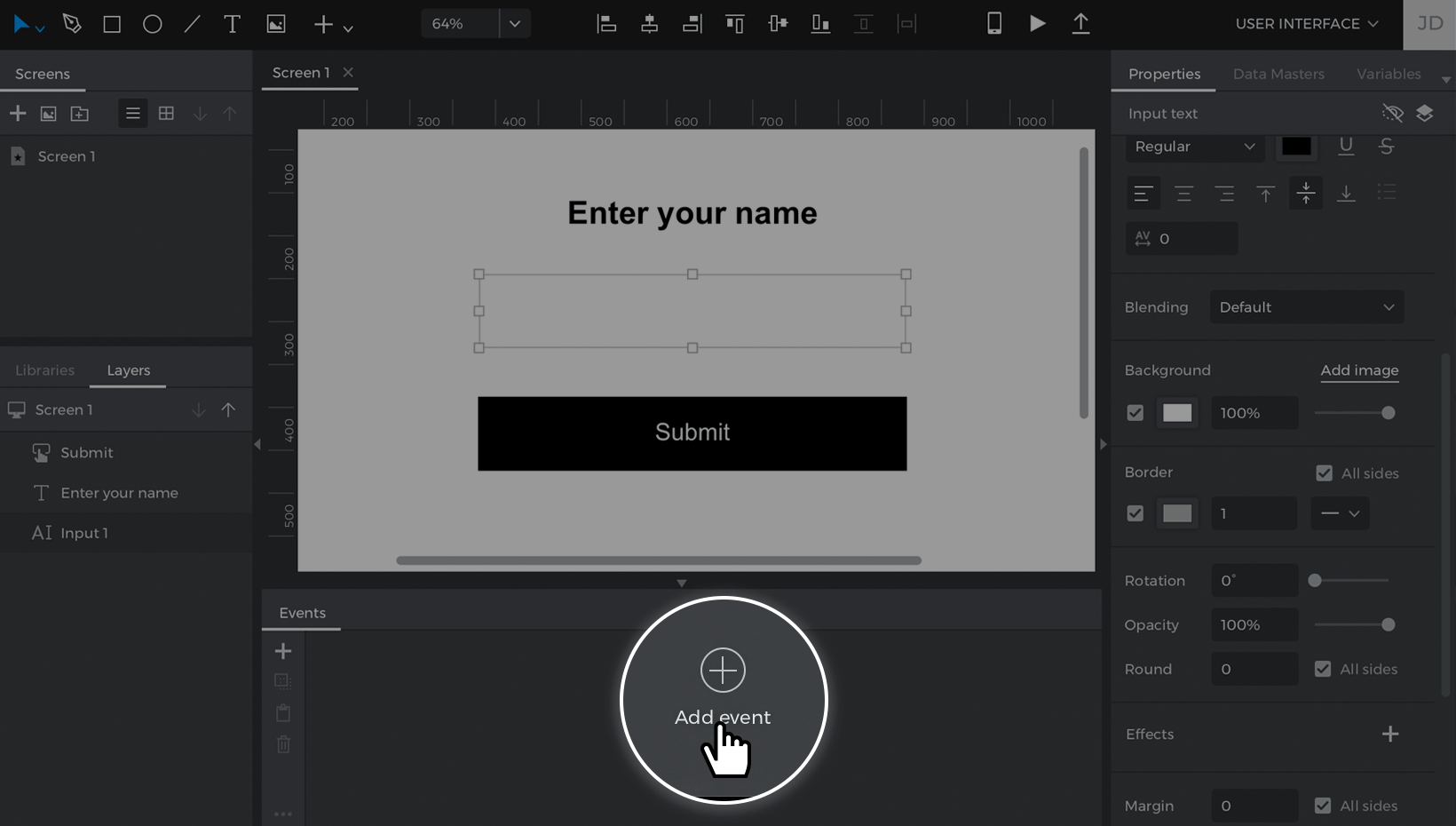

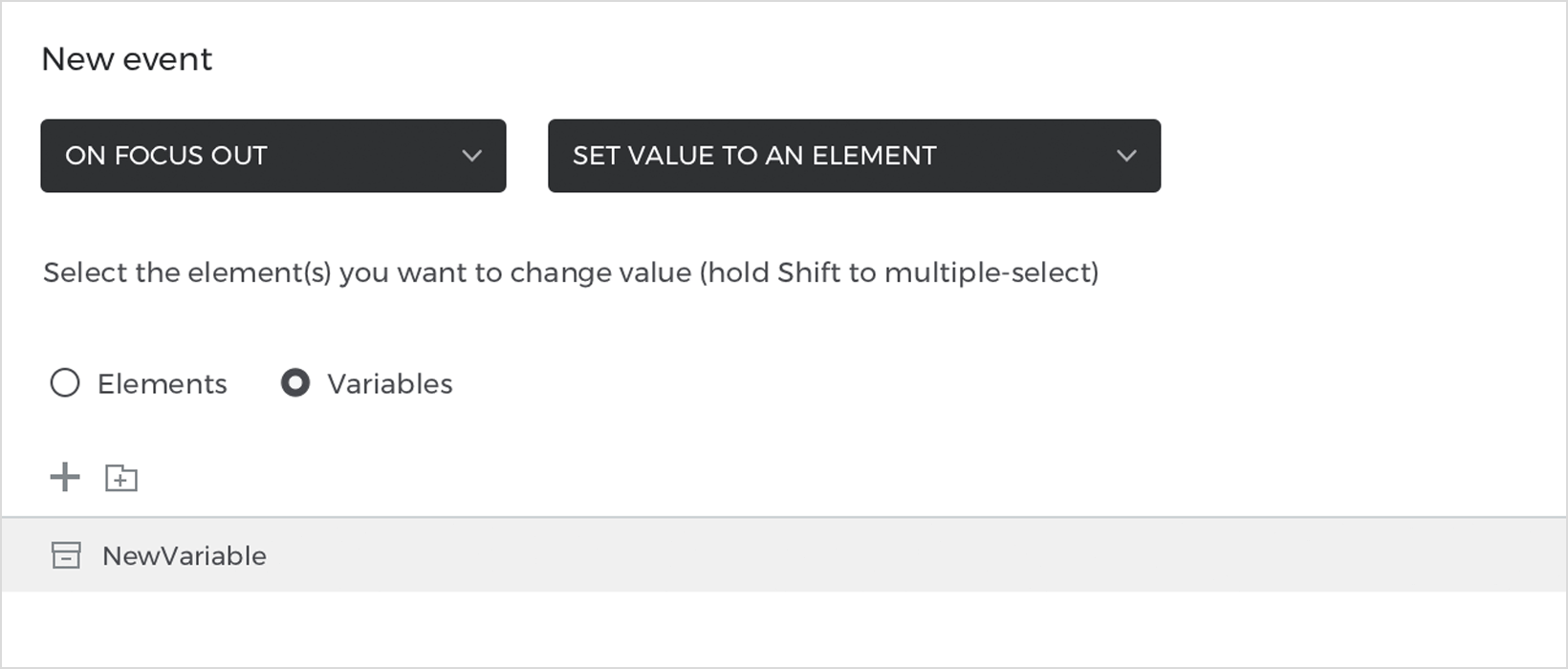
- You’ll see a dropdown labeled ‘Choose Trigger’. Click on that and pick a trigger which will start the event. As an example, pick the On Focus Out trigger.
- Select Set Value to an element from the ‘Choose Action’ dropdown.
- You’ll see a preview of the Canvas appear next with two radio buttons – ‘Elements’ and ‘Variables’. Click on the ‘Variables’ radio button and choose a variable you previously created from the list.

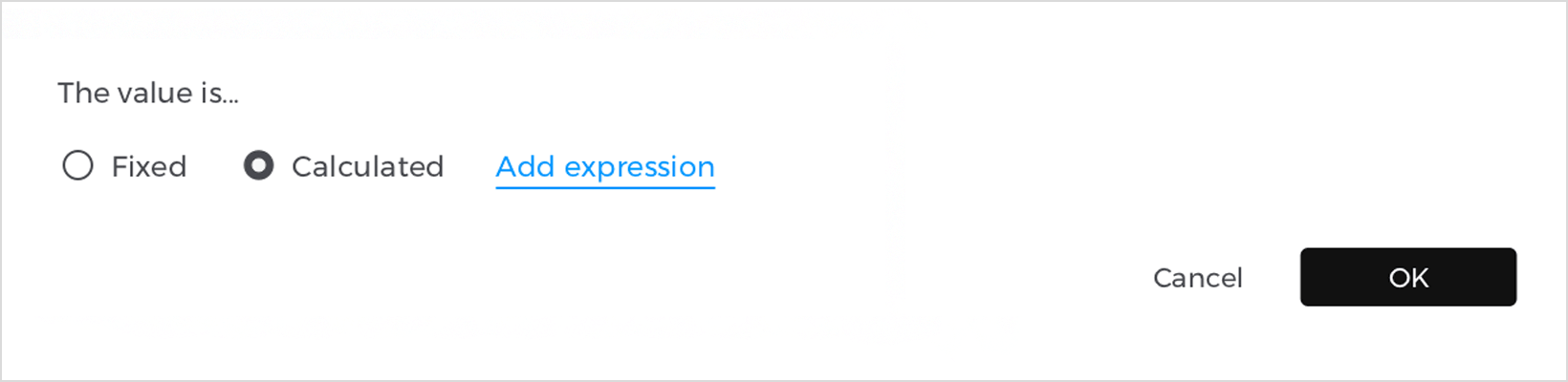
- Below, you can find where you’ll define the value to give the variable. Click on the ‘Calculated’ radio button and then tap the ‘Add expression’ text link.

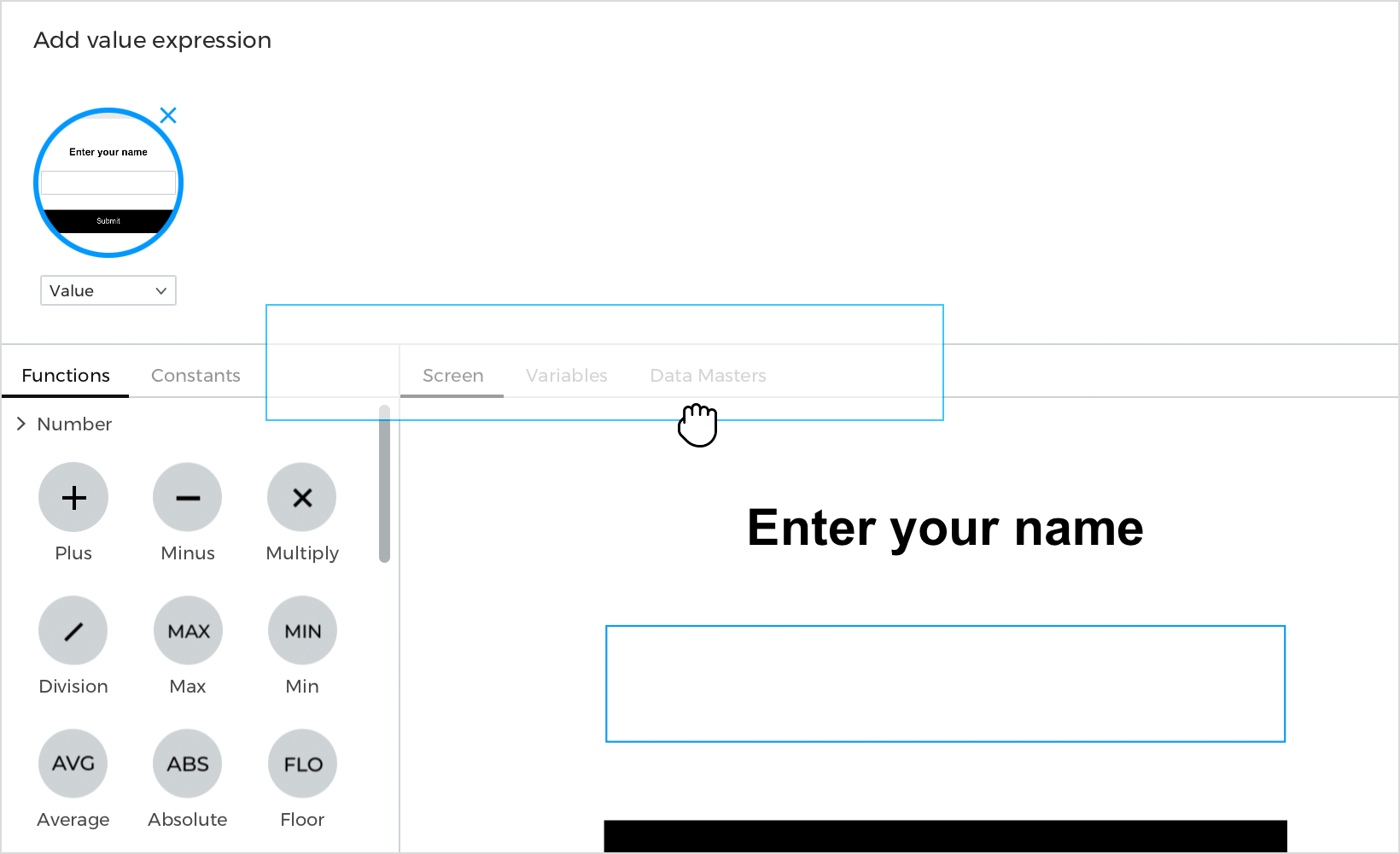
- You’ll now see the Value Expression builder, which is where you can define what value you’ll give to the variable. Drag and drop the input text field from the Canvas preview to the open space in the expression that reads “Click to edit or drag & drop a component”.

- Click ‘OK’ to finish building the expression and the event.


This event transfers whatever’s entered in the input text field over to the variable when you click out of the input text field.
Give an element the value of a variable
Now that you’ve defined a value for the variable, you can move the variable’s value to an element on another screen.
Go to another screen in your project and select the element you’d like to display the variable’s value. As an example, you can select a Text T element you’ve added on the Canvas.
You can give that text element the variable’s value in two ways:
- Drag and drop: drag the variable from the Variable’s palette to the text element on the Canvas. This will create an On Page Load + Set Value event automatically, which transfers whatever’s stored in the variable to the text element on this screen.
- The Events Palette: you may want an element to display the variable’s value after doing something else on the screen first, like tapping on some text.
- Select the element you’d like to show the variable’s value. As an example, select a text element.
- Go to the Events palette and click ‘Add event’
- Select an On Page Load trigger and a Set Value action for the event.
- You’ll see a Canvas preview where you can select the text element as the target of the action.
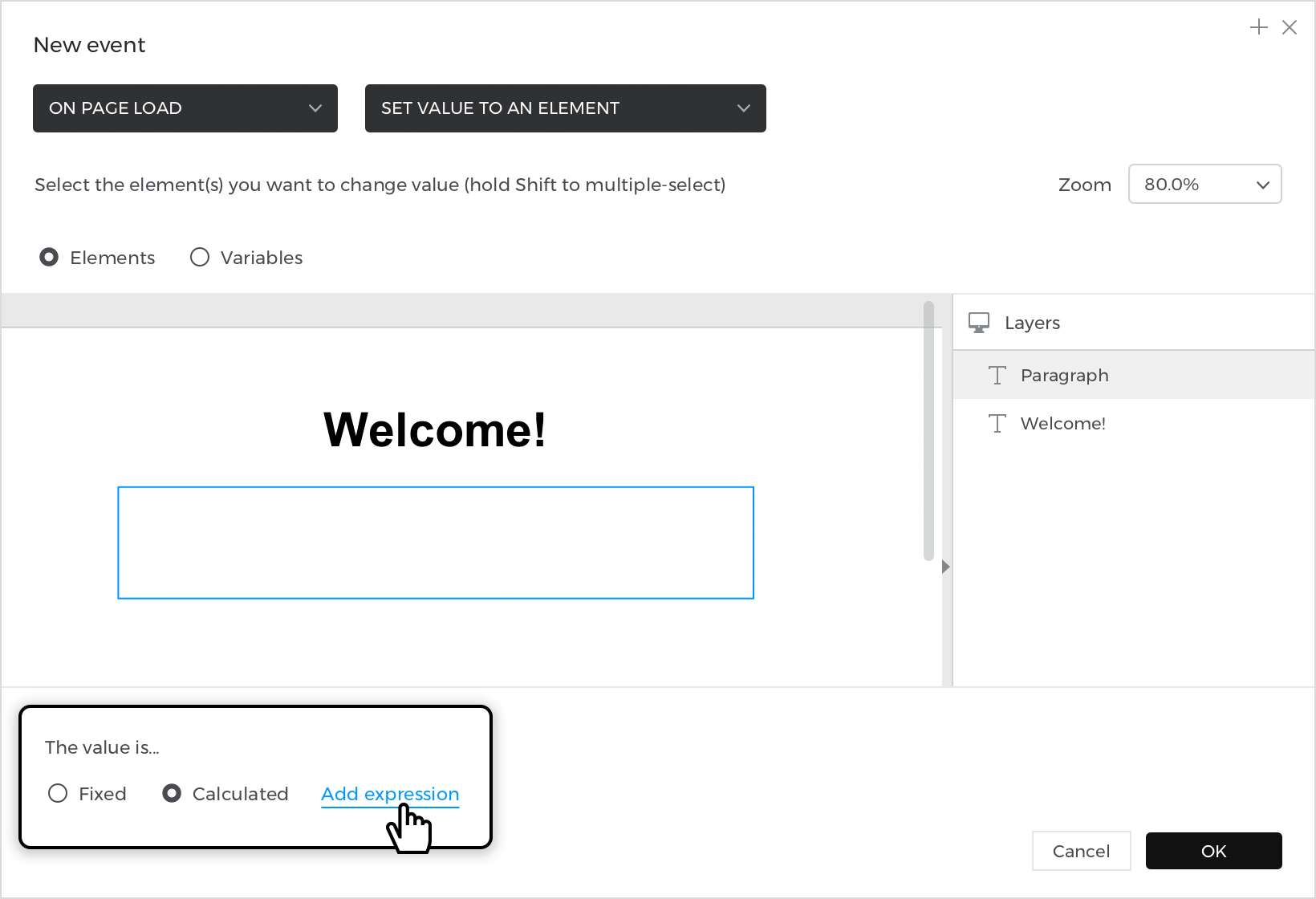
- Below, click on the ‘Calculated’ radio button and the ‘Add expression’ text link to open the Value Expression builder.

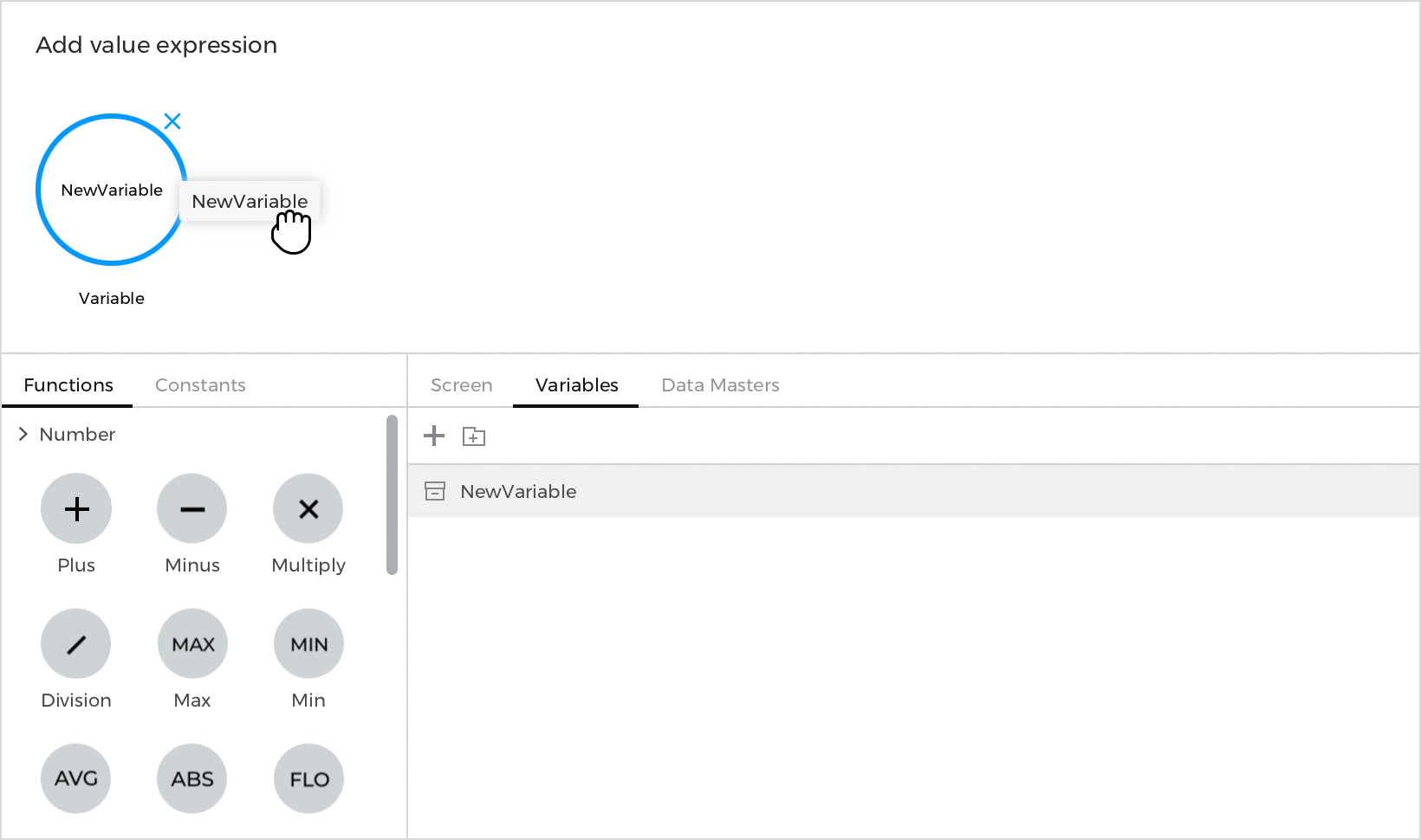
- Click to the ‘Variables’ tab in the Canvas preview and drag the variable from the list to the open space in the expression.

- Click ‘OK’ to finish building the expression and the event.


This event copies the variable’s value and paste it onto the text element when you click on it during simulation.
You can create so many different types of projects with variables – continue on to the next article to see more examples of how to use them to share information between screens, define conditional content, and build automatic countdown timers.
How-tos: learn how to design common use cases
With Variables, you can transfer information from screen to screen and create advanced interactions. Check out these exercises to learn how to use them.
Share information between screens
In this exercise, you’ll create an email address sign-up screen and see that email reflected on a confirmation screen.
Design the example
- Create a project with two screens. Go to Screen 1 and design a sign-up form using an Input Text Field F and a Button B.
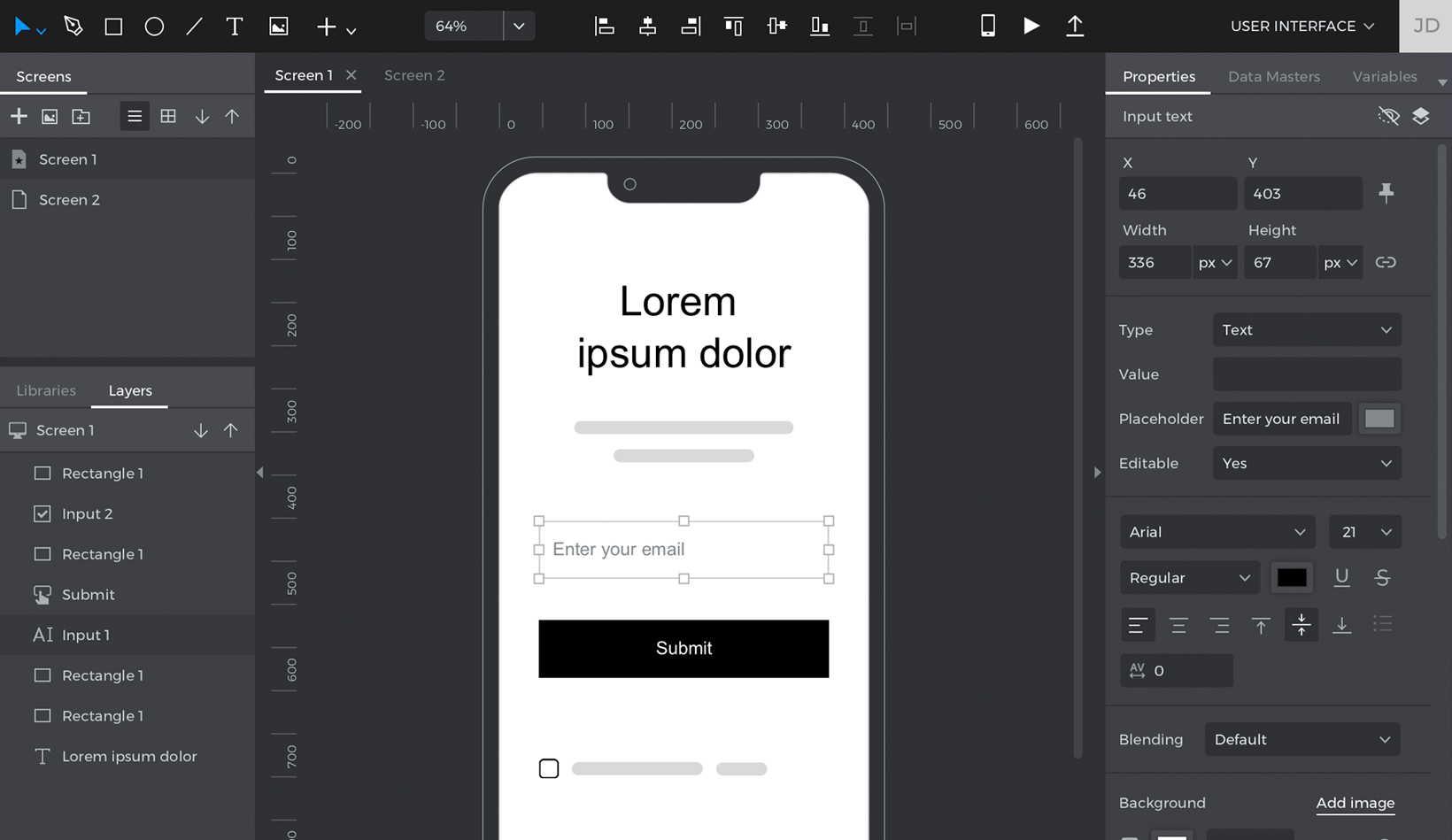

- Add a text element to Screen 2 and style it as preferred. You’ll use this text element to show the email address you entered on the previous screen.
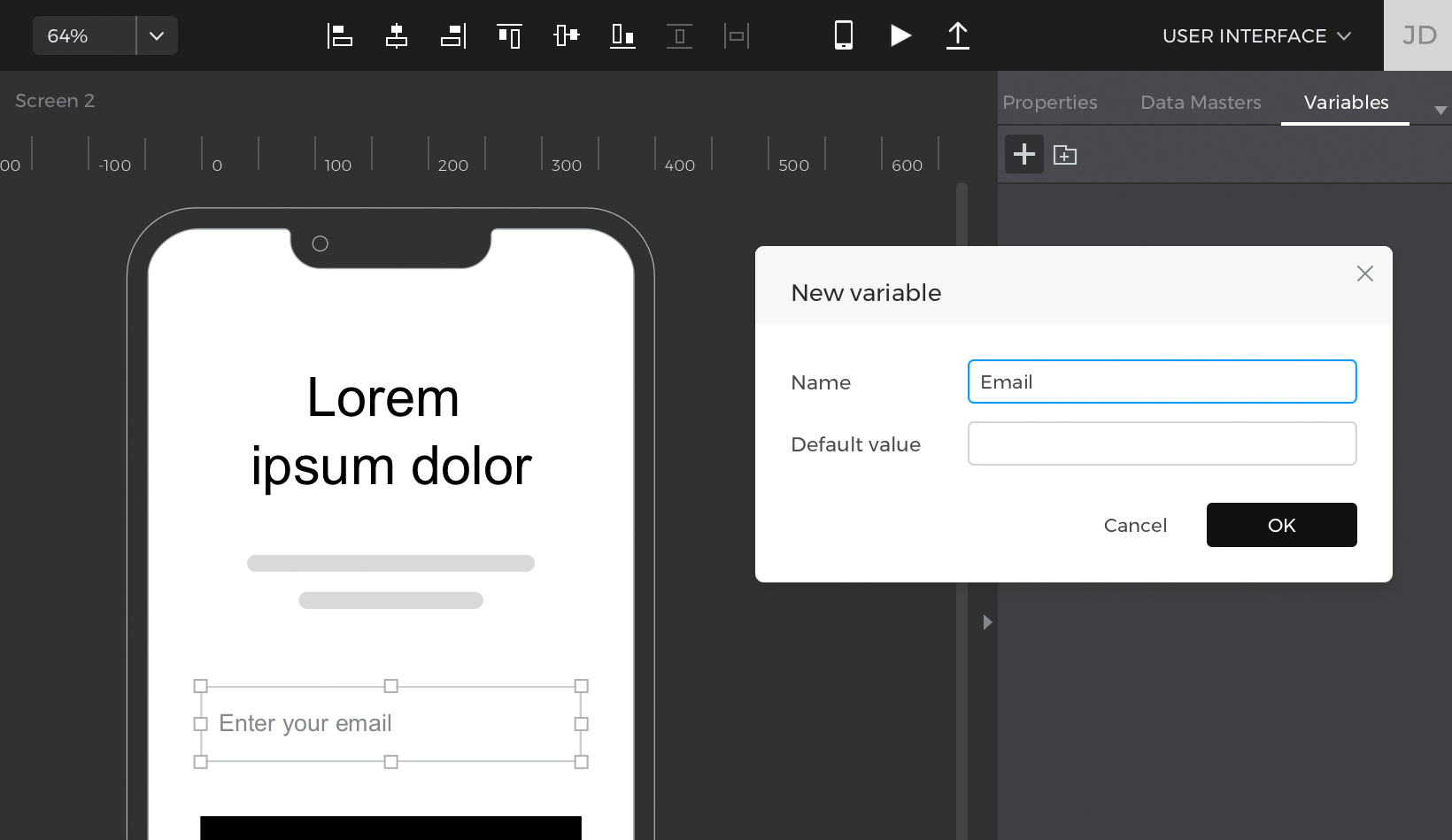
- Go to the Variables palette and create a new variable by clicking on the ‘+’ button. Name the variable “Email” and leave its default value blank.


Create the events
- Go back to Screen 1 and select the input text field. Drag it to the “Email” variable in the Variables palette.
This creates an On Page Unload + Set Value event, which gives the variable the value you enter in the input text field when you navigate away from the screen. - Select the button below the input text field and drag it to Screen 2 in the Screens palette, creating a link from the button to Screen 2.
- Go to Screen 2 and drag the “Email” variable to the text element on the screen.
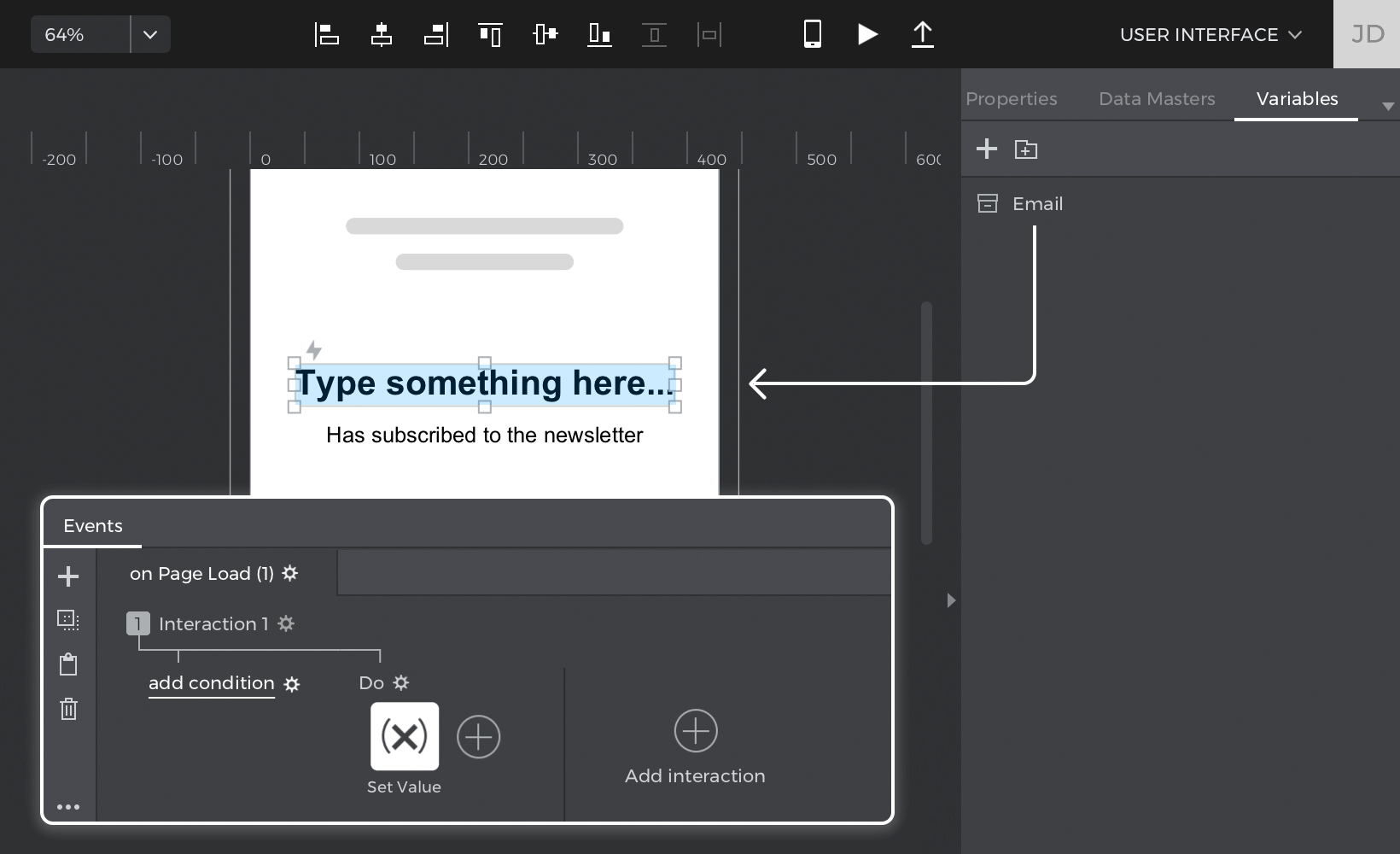

This creates an On Page Load + Set Value event and gives the text element the variable’s value when the screen first loads.

Click the ‘Play’ button to simulate your project. Type in an email address in the sign-up form and click the button to navigate to Screen 2. You’ll see the email you typed in reflected on the text element.
Show or hide conditional content
You can use variables with conditions to determine the relationship between elements on different screens. In this example, you’ll learn how to build a sign-in form that shows more content on another screen depending on what you enter into the form.
Design the example
- Create a project with two screens. Build a sign-in form on Screen 1 with an Input Text Field and a Button.
- Go to Screen 2 and design it as preferred. Select some elements on the screen and group them using Command / Control + G.
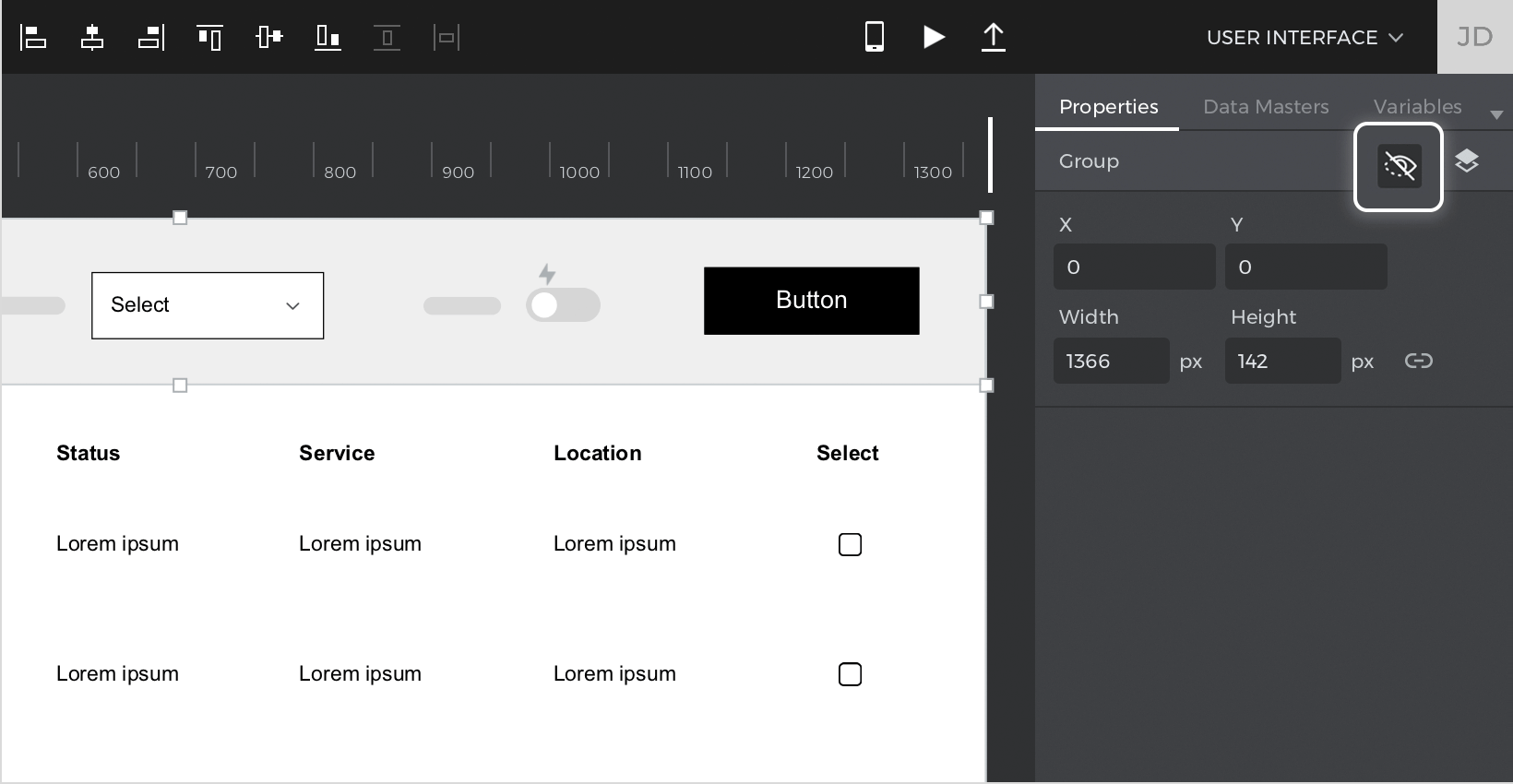
- Mark that group as hidden in the Properties palette.

- Create a new variable named “User” and leave its default value empty.

Create the events
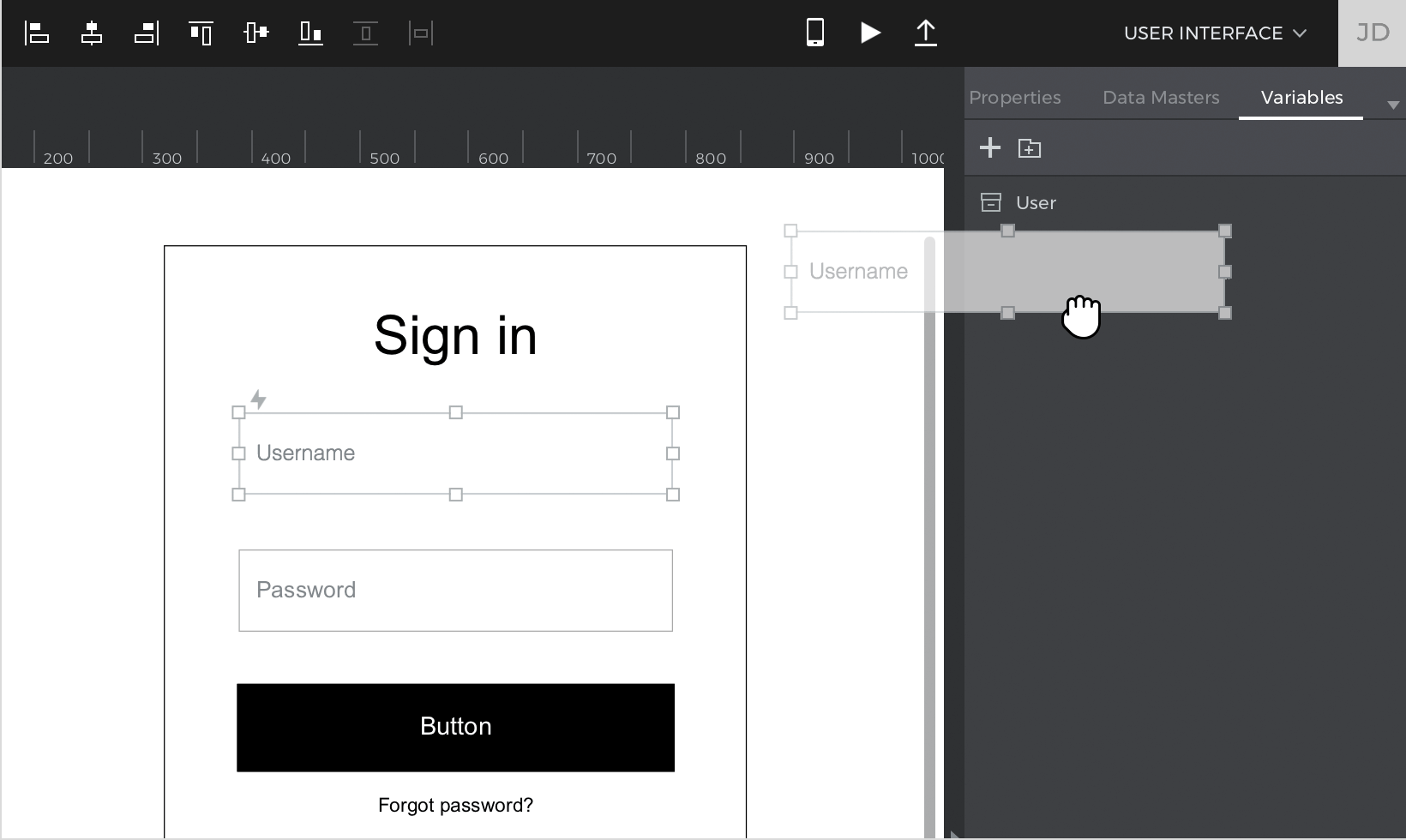
- Go back to Screen 1 and select the input text field in the sign-in form. Drag that input text field to the “User” variable in the Variable’s palette, which creates an On Page Unload + Set Value event.

- Select the button on this screen and drag it to Screen 2 in the Screens palette, which creates a link between the screens.
- Go to Screen 2 and double-click on the Canvas to select the base screen.
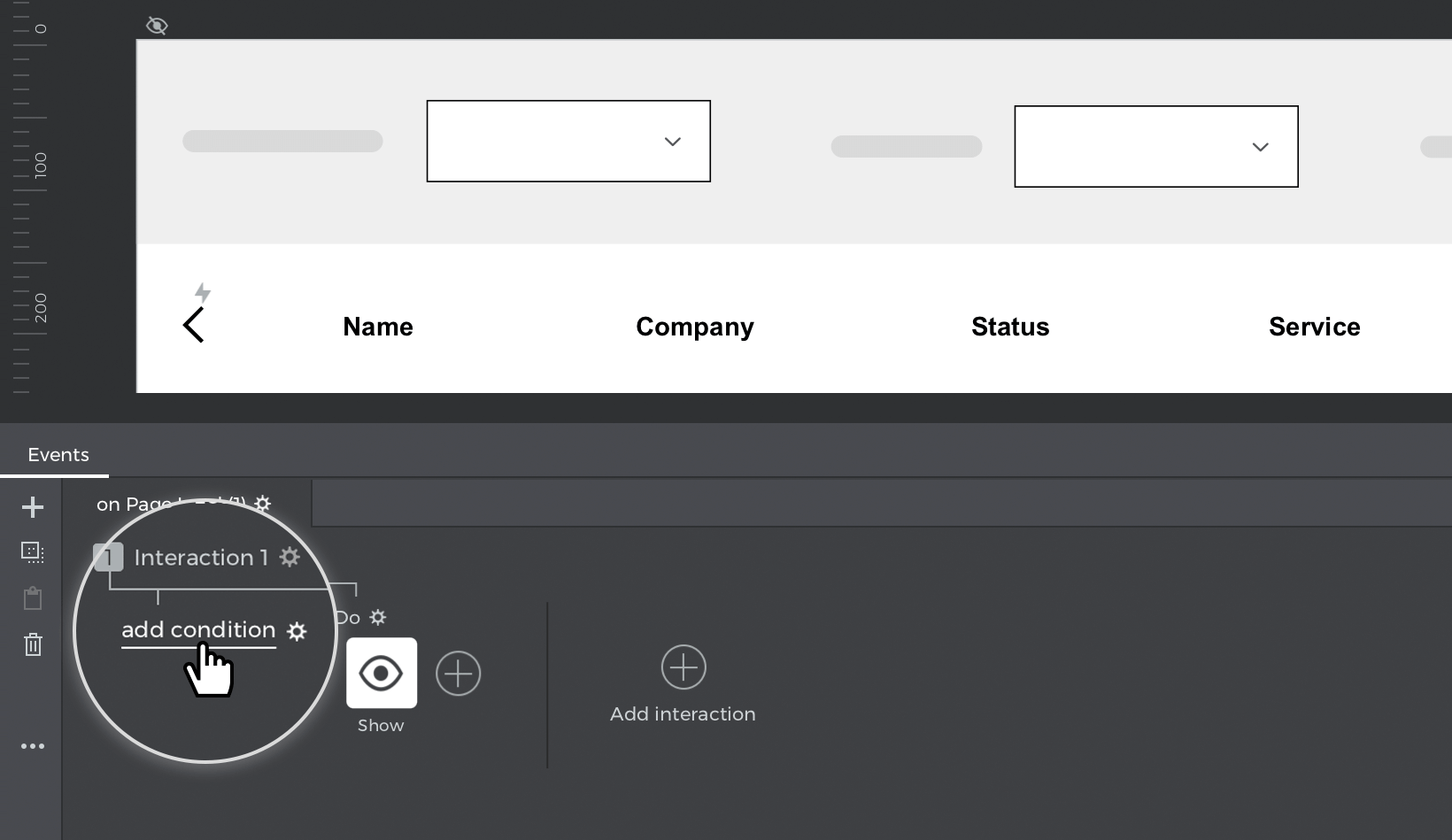
- Look to the Events palette and click ‘Add event’. Build an On Page Load + Show event, showing the group you created earlier. Click ‘OK’ to finish building the event.
- Click the ‘Add condition’ text link above the event you just created, which will open the Conditional Expression builder.

- Follow these steps to build the condition:
- a. Click to the ‘Variables’ tab in the Canvas preview and drag the “User” variable to the open space in the expression.
- b. Drag an Equals (=) logic function next to the variable.
- c. You’ll see a new open space appear, where you can type in “Admin”.
- d. Click ‘OK’ to finish building the condition.


Click the ‘Play’ button to simulate your project. Enter “Admin” into the input text field, click the button to go to Screen 2, and you’ll see all the content show up on the screen.
Simulate the project again and type some other value into the input text field. Click the button to go to screen 2 and you’ll see fewer elements on the screen this time.
Recurring events
In this exercise, you’ll learn how to use the On Variable Change trigger, which allows you to create automated events, like a countdown timer.
Design the example
- Add a Text element and a Button to the Canvas. Give the text element a value of “10” and label the button “Start”.
- Create a new variable named “Countdown” and leave its default value blank.
Create the events
- Select the “Start” button on the Canvas and create an On Tap + Set Value event. Select the “Countdown” variable as the target of the event and type in “11” as the value to give the variable.
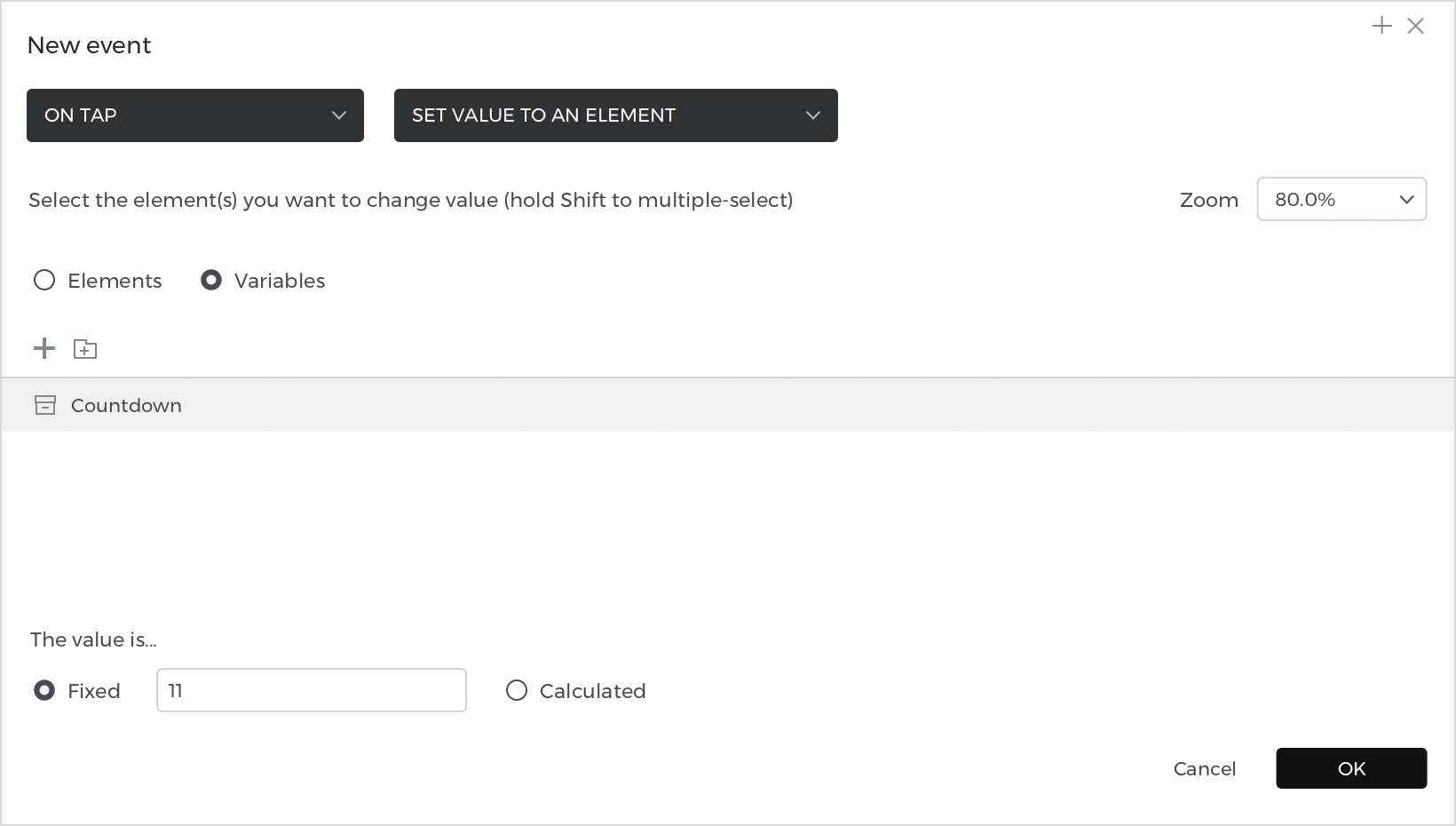

- Click the ‘+’ button at the top of the palette to add another interaction.
- Select an On Variable Change trigger. You’ll see a dropdown appear where you can pick the “Countdown” variable.
- Select a Pause action and change the duration to 1000ms (1 second). Click ‘OK’ to finish building the event.
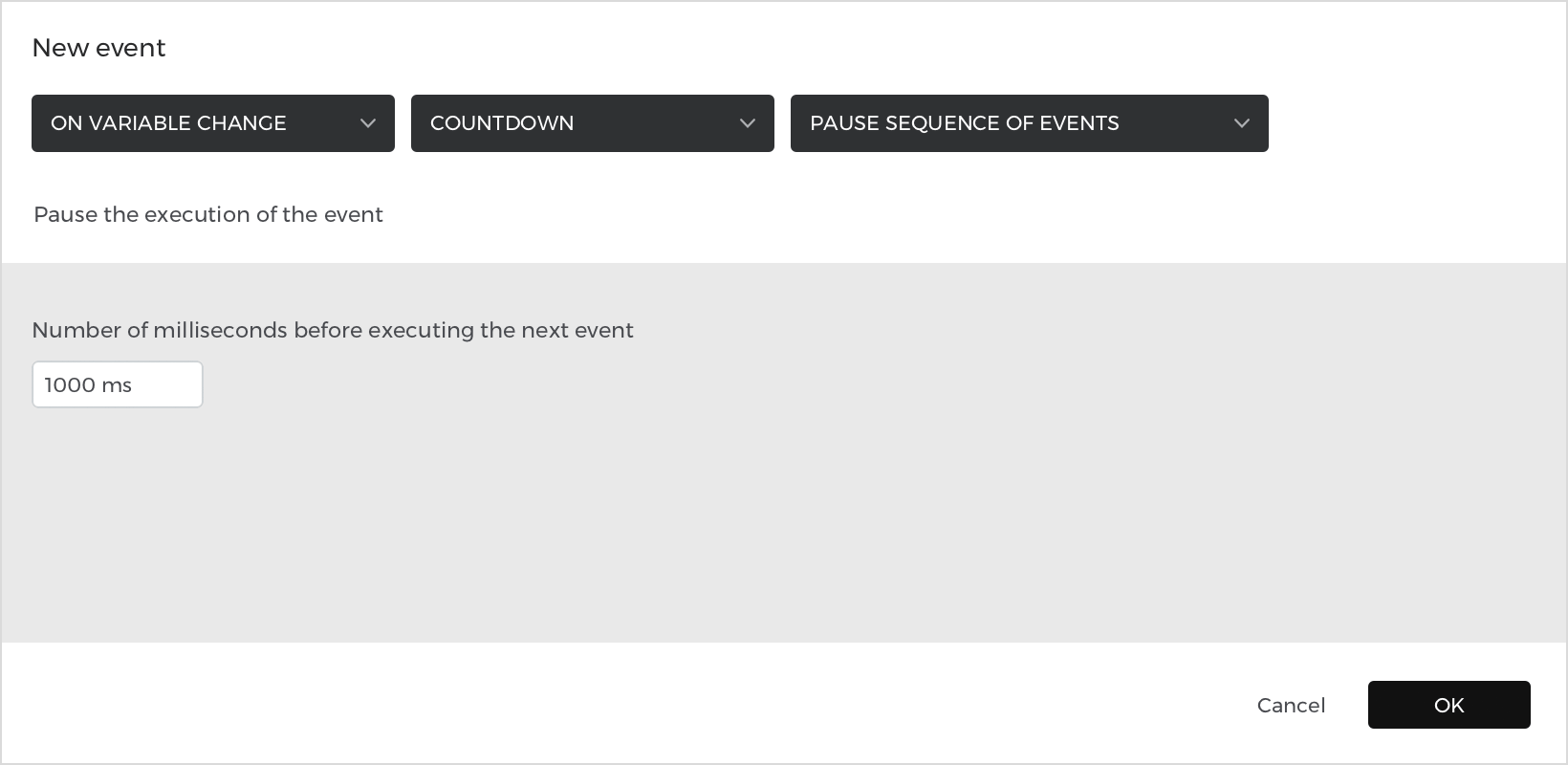

- Look to the action you just created in the Events palette and click the ‘+’ button to add another action.
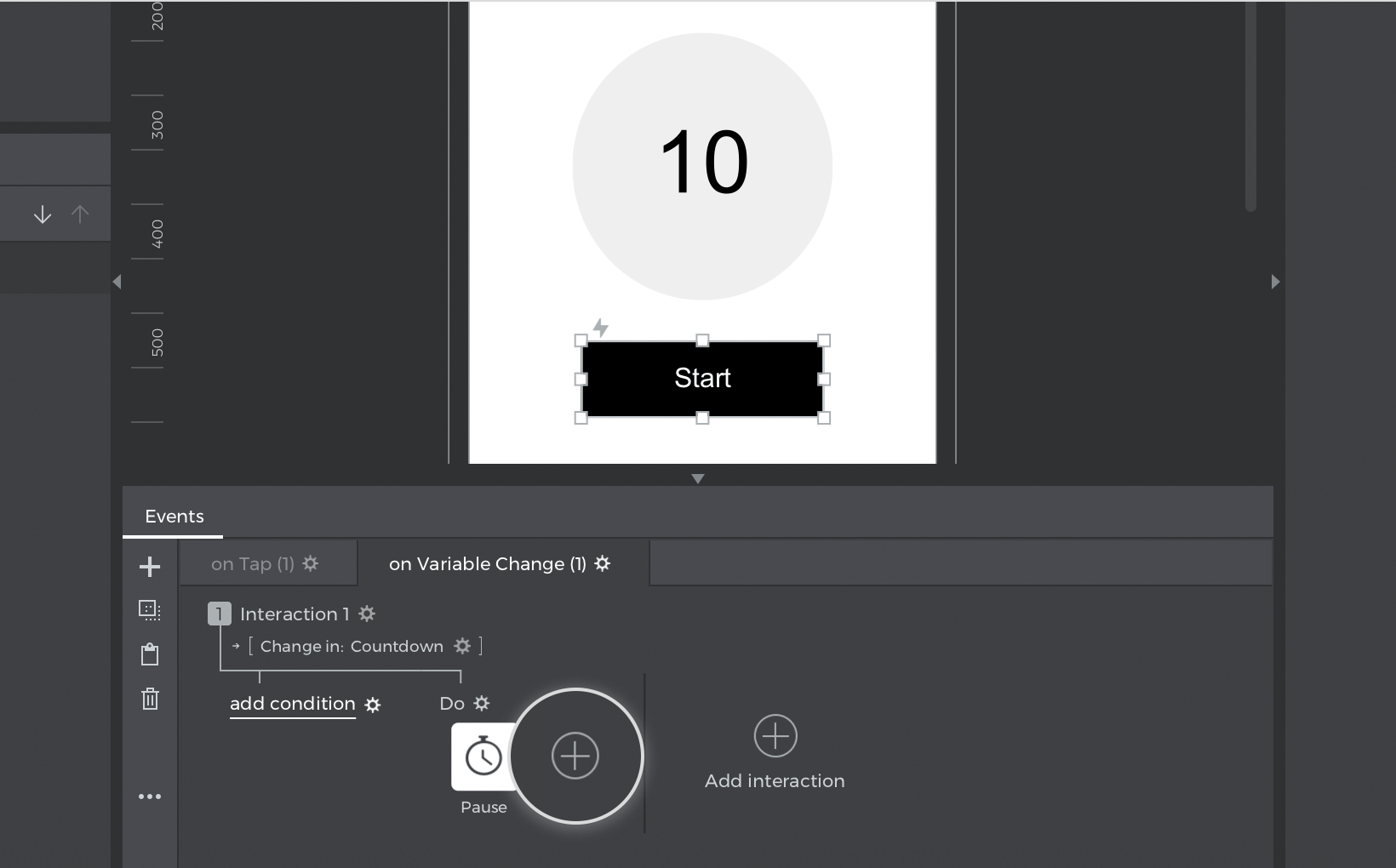

- Choose an On Variable Change with the “Countdown” variable. Pick a Set Value action and tap the ‘Variables’ radio button to find the “Countdown” variable to select.
- For the value, click the ‘Calculated’ radio button and the ‘Add expression’ text link, which will open the Value Expression builder.
- Follow these steps to build the expression:
- a. Click to the ‘Variables’ tab in the Canvas preview and drag the “Countdown” variable to the open space in the expression.
- b. Place a Minus (–) number function next to it.
- c. You’ll see a new space appear in the expression, where you can type in “1”.
- d. Click ‘OK’ to finish building the expression and the event.
- Click the ‘+’ button to add one more action – On Variable Change + Set Value. Select the text element as the target of the action and click the ‘Calculated’ radio button and the ‘Add expression’ text link.
- Drag the “Countdown” variable to the open space in the expression and click ‘OK’ to finish building the event.
- Click the ‘add condition’ text link above your On Variable Change events. Drag the “Countdown” variable to the open space in the expression, followed by a Greater or Equals (≥) logic function. Finally, type in “1” into the open space that appears and click ‘OK’.


Here’s how your Events palette should look:
This example works by changing the value of the “Countdown” variable when you click on the “Start” button. This triggers the On Variable Change actions – pausing for one second and then subtracting 1 from the variable. The last action transfers the variable’s value to the text element.
Because the second Set Value event affects the variable itself (subtracting 1), the events trigger all over again until the variable’s value is less than 1.